 drainage auto-sizing-levelling and simulation toolbar,
click the
drainage auto-sizing-levelling and simulation toolbar,
click the  Run Back to Back Storm Simulation button.
A back to back storm simulation can be run from Site3D using the back to back storm simulation tool. After you have ran a storm simulation you can then see the simulation report and also play the simulation back within Site3D.
On the drainage auto-sizing-levelling and simulation toolbar,
click the Run Back to Back Storm Simulation button.
After clicking on the Run Simulation button you will see the following window appear:
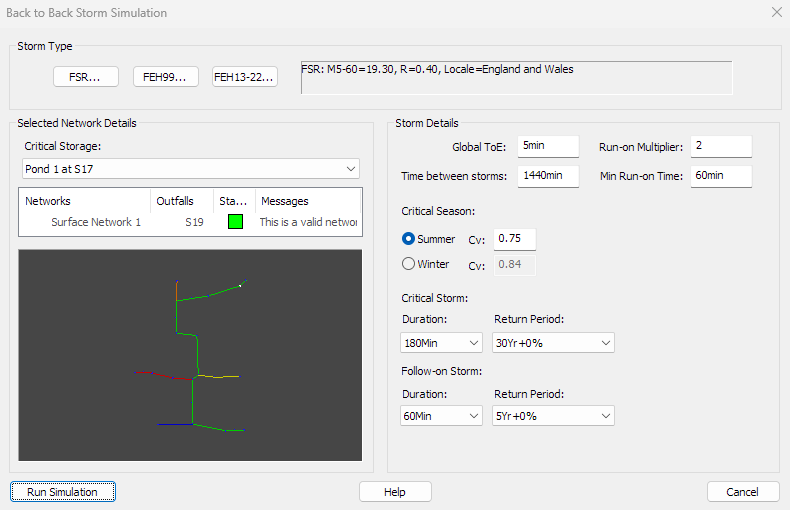
The area to the right shows the current rainfall parameters being used. You can click on one of the buttons to the left to pick new settings using data from either FSR, FEH99, or FEH13.
You must select a storage item or outfall manhole to act as the critical storage item for the simulation. Site3D will then try to intelligently pick the most critical storm, of any storms previously ran using the standard drainage simulation tool  .
.
Note: Storage items that are part of networks with no outfalls will not show in the dropdown.
The network information for the selected storage item will appear below it along with a preview of the network, that will be simulated. A network will show a green status icon if it is valid. If the network has an orange status it indicates an issue with the networks design which should be resolved, the messages column will explain the issue.
You can specify the dry period between the end of the critical storm and the start of the follow-on storm using the Time between storms option. The default is 1440 mins (24 hours).
The critical storm is pre-selected based on worst level/flooding in the selected storage item during previously ran simulations, you can choose to manually override the season, duration and return period of this storm.
The follow on storm is simulated after the critical storm in one back to back simulation.You must manually choose the duration and return period of this storm.
All other settings, such as Global Time of Entry, CV values etc. are the same as in Drainage Simulation Window. These all default to match the drainage simulation tools settings.
Click here for more in-depth information on the Storm Simulation Settings.
Press the Run Simulation button to start the requested simulation, after completion a report will appear showing the results for the combined storm.
Click here for more in-depth information on the Storm Simulation Results Report.